Your first two weeks
From the day you sign up to the day the office knows who is in.
Creditsafe had over 100 people on intheOffice in two days, and 72% of the office on it within two weeks. The times below are a guide to each step; yours will depend on how many people and offices you are setting up.
PDF, 1 page, 99 KB. The same plan as this page, for the admin, HR and IT to keep on the desk.
Who does what
The champion
Five minutes before anything starts: name the admin, pick the go-live day, find the IT contact.
The admin
One morning to set the office up, then five minutes a day for the first week. Everything below is theirs.
Everyone else
About two minutes, once: open the invitation and set their days. That is the whole job.
IT has one five-minute job, on the first afternoon, and nothing is installed. Send them the IT brief if they want the detail first.
The plan, day by day
Before you start
the champion, 5 minutes (estimate)
- Decide who the admin is. One person sets the office up; everyone else only sets their own days.
- Pick a go-live day within the next ten working days and write it down. It is the day the schedule becomes how the office knows who is in.
- Get your IT contact’s name. They have one five-minute job on day one.
If you would rather not do it alone, book a setup call and we do everything below with you in an hour.
Day 1, morning
the admin, 20 to 40 minutes (estimate)
- Create the account with your work email or your Microsoft sign-in. One account per company: if a colleague has already signed up, ask them to invite you.
- Name your location and set its capacity, the number of people who can be in on a day. Add a second location if you have one.
- Add your people. From Microsoft 365, about five minutes. From a spreadsheet with the headers firstname, lastname and email, about ten minutes. One at a time by email if you prefer.
- If you use Microsoft, switch on "Allow self sign up" under Single Sign On Rules in Settings, so that anyone with your email domain can sign themselves in without waiting to be added.
- Switch on the modules you want to try: Desk & Space Booking, Visitor Management, Advanced Scheduling. The 7-day trial starts when the first module is switched on, not at signup.

intheOffice App - Settings Intro
Playing here loads YouTube’s player, which sets its own cookies. Watch on YouTube
Settings, where the location and its capacity are set: step 2.

intheOffice App - People Intro
Playing here loads YouTube’s player, which sets its own cookies. Watch on YouTube
The People page, where you invite, import or sync everyone: step 3.
Day 1, afternoon
IT, 5 minutes (estimate)
The whole of IT’s job, and it can be done while the admin is still adding people.
- Allow the invitation sender, hi@intheoffice.io, through your mail filter.
- If you want the people list synced from Microsoft 365, a tenant admin grants consent for the directory-read permission the sync asks for. Signing in with Microsoft needs nothing beyond the basic profile.
Nothing is installed and there is no server to provision.
Day 2
the admin, 10 minutes (estimate)
- Send the announcement. There is a draft below: what it is, why you are doing it, what each person has to do, and the go-live day.
- People receive their invitation from hi@intheoffice.io, set a password or sign in with Microsoft instead, and set their first week.
- Setting a week takes about two minutes, and that is the whole job for everyone who is not the admin.
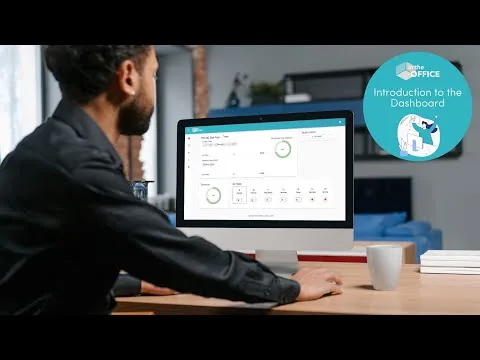
intheOffice App - Dashboard Intro
Playing here loads YouTube’s player, which sets its own cookies. Watch on YouTube
The Dashboard, the first screen each person sees and where they set their days: step 3. Send it round with the announcement.
Days 3 to 5
the admin, 5 minutes a day (estimate)
- Watch the Schedule fill up.
- Nudge the people who have not set a week yet.
- Set your own week where everyone can see it. People copy the admin.
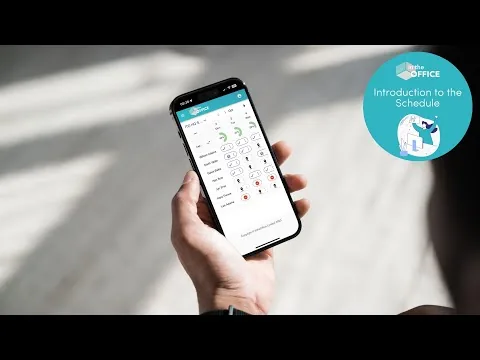
intheOffice App - Schedule Intro
Playing here loads YouTube’s player, which sets its own cookies. Watch on YouTube
The Schedule, where you see who has set a week and who has not: step 1.
Go-live day, day 5 to day 8
everyone
- Everyone who is coming in has said so, and the week ahead is on one screen. That is what running looks like.
- From today, the schedule is how the office answers "who is in on Thursday?", not the group chat.
Week 2
the admin, 30 to 60 minutes (estimate)
- If a module is not switched on yet, switch it on now.
- Add your desks, meeting rooms, parking spaces and lockers as spaces. About a minute a space, so a floor of forty desks is under an hour, and the space plan puts them where they really are.
- Announce it in the same thread as the first message, so people know a desk is now bookable.
- Check the Subscription tab in Settings: it shows what is left of your trial and the running total for the people on your account.
Hot desk and space booking walkthrough
Playing here loads YouTube’s player, which sets its own cookies. Watch on YouTube
The two ways a person books a desk or a space once you have added them: step 2.
The announcement, to send on day 2
A draft, for you to edit before you send it. The announcement is the step that decides whether the rest happens: it commits you in front of your colleagues, and it tells everyone what their two minutes are for.
Whatever you type here stays in your browser. It is not saved and it is not sent to us; it only fills in the words below.
Hi everyone,
From [go-live day] we are using intheOffice to say which days we are working in the office, at home or away, so the people who need to work together are in on the same day, and so nobody comes in to find there is nowhere to sit.
What you need to do, once, this week:
1. Look for an invitation from hi@intheoffice.io. Open it and set a password, or sign in with your [company] Microsoft account instead. 2. Set your days for this week and next. It takes about two minutes. 3. Change a day whenever your plans change. Nobody is asking you to commit to a year.
That is the whole job. [Name] is our admin, so ask [name] if anything looks wrong, or reply to this email.
Thanks, [Name]
End of week 2. Done looks like this.
Four things, and you can check all four from the app. When they are true, you are finished setting up and nobody has to wonder whether there is more to do.
- Everyone is invited.
- Four in five people have set at least one week.
- The module you switched on is still on, and someone other than the admin has used it.
- The running total on the Subscription tab is a number you expected.
If any of those is not true at the end of week two, book the setup call and we finish it with you.

intheOffice App - Reporting Intro
Playing here loads YouTube’s player, which sets its own cookies. Watch on YouTube
Reporting, where the attendance the first two weeks produced can be read back.
Support comes from the people who built intheOffice, led by the founder. Email hi@intheoffice.io at any point in the fortnight.